
- Introduction & key concepts
-
Download: PowerPoint and Excel files
-
Introduction 5 min
- Building the chart
-
Adjusting the scale 3 min
-
Customizing axis labels 4 min
-
Adding the partitions and colors 3 min
-
Adding taglines 4 min
-
Adding the legend 3 min
-
Customizing label positioning 3 min
- Completion
-
Complete course 1 min
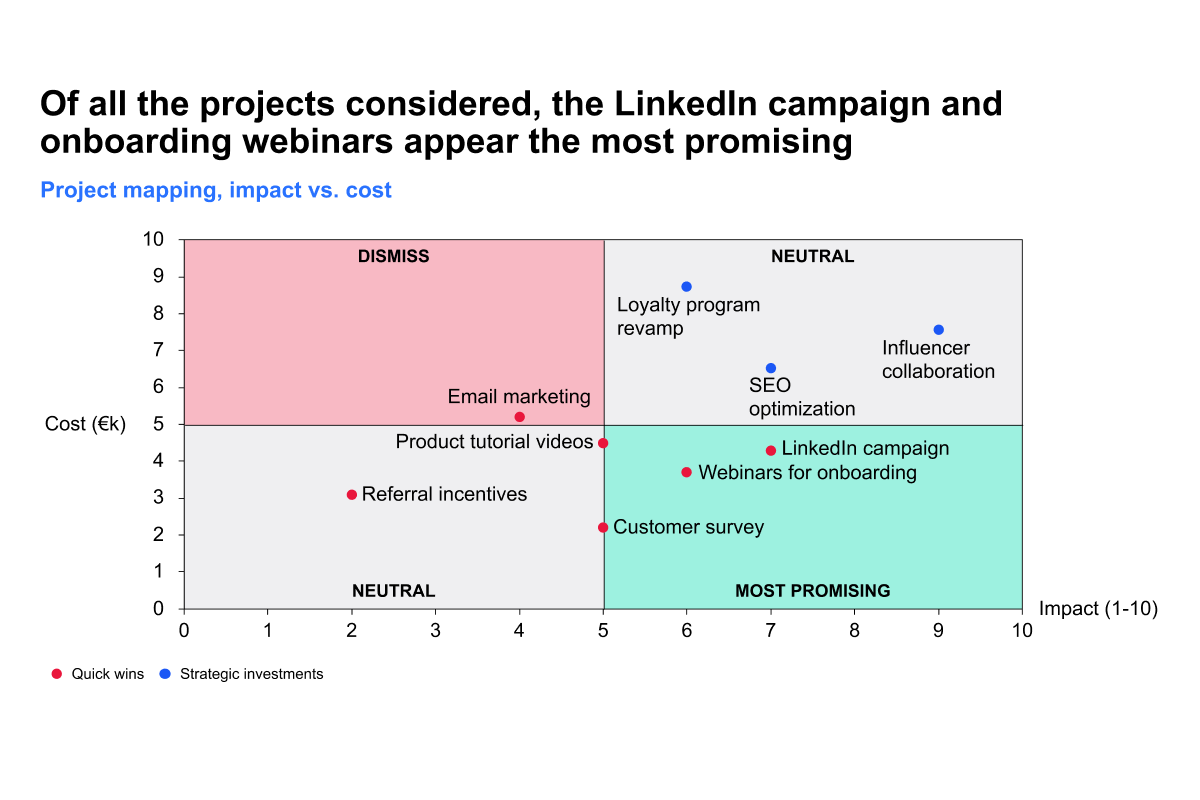
Classify project impact
Course 4 of 6 in Project Management
Learn how to clearly classify project impact using thinkcell scatter charts
By the end of this course, you’ll know how to classify project impact using a clear, quadrant-based scatter chart, designed to communicate strategic insights with precision and clarity.
- Smart visual segmentation: Learn to visually separate your data into four labeled and color-coded quadrants, each representing a specific type of project impact or strategic zone.
- Dynamic and scalable formatting: Ensure that all elements (data points, quadrant borders, legends, and labels) scale correctly and move as a single unit when the chart is repositioned or resized.
- Best practices for structure and clarity: Get guidance on organizing your Excel data sheet for a smooth import into thinkcell, along with proven techniques to avoid clutter and improve chart readability.
- Guided alignment and labeling: Use drawing guides, callouts, and legends to maintain professional, consistent slide layouts that enhance comprehension and visual impact.
These techniques will help you deliver well-structured, high-impact scatter charts that go beyond visuals, giving your audience clear insights into project value, risk, or priority.