
- Basic linking features
-
Create a chart from Excel data 5 min
-
Link data to existing charts and tables 3 min
-
Update charts with refreshed data 5 min
- Advanced linking features
-
Identify linked data and break / reestablish links 2 min
-
Add new data to an Excel-linked chart
- Completion
-
Test your knowledge
-
Share your feedback 1 min
-
Complete course 1 min
Link thinkcell charts to Excel
Course 4 of 9 in thinkcell Professional
Learn how to link and manage Excel data in thinkcell charts and tables, update charts with refreshed data, and update links
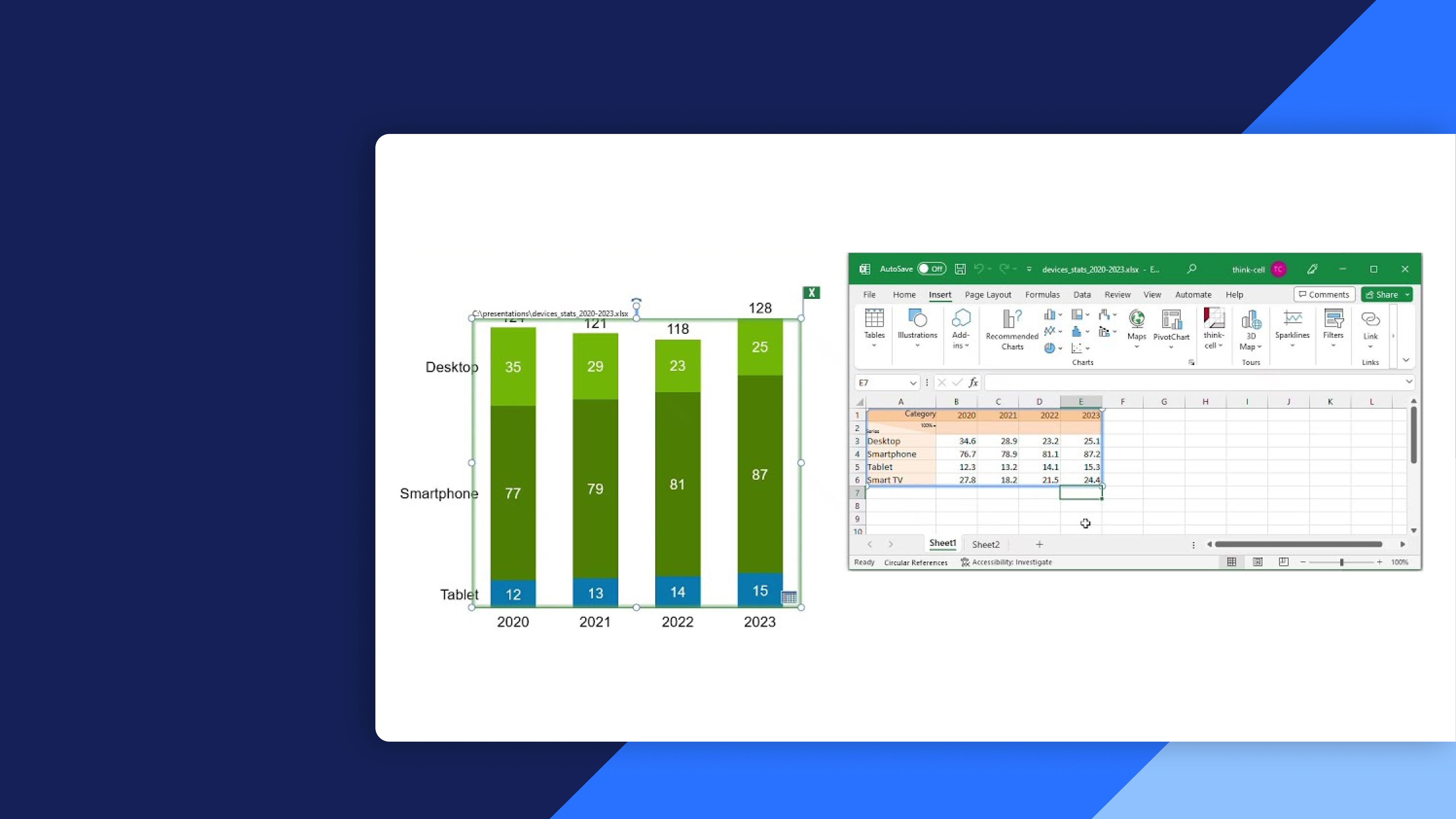
Learn how to connect Excel data with thinkcell charts and tables in PowerPoint. Create, update, manage, and troubleshoot linked elements to build more efficient, data-driven presentations.
- Excel data linking: Learn how to create thinkcell charts from Excel data and organize data ranges for different chart types.
- Link existing charts and tables: Connect Excel data to existing charts and tables in PowerPoint and control the formatting of linked elements.
- Update linked elements: Refresh linked charts and tables when Excel data changes, revert updates, and manage update settings across a presentation.
- Manage data links: Identify linked data sources, break and reestablish links, and understand how linked elements behave when the source data is unavailable.
- Advanced linking features: Explore additional thinkcell linking capabilities to efficiently manage Excel-driven presentations.